
The single most damaging cybersecurity mistake people make in 2026 is reusing passwords. The second is writing them in spreadsheets, sticky notes, or text files. Both problems disappear with one tool: a password manager.
Yet most people still resist using one. The mental model is wrong. They imagine password managers as another security headache to learn. In reality, a good password manager makes daily life easier than what most people are doing now.
This guide compares the best password managers in 2026 across security, ease of use, family and team plans, and pricing. By the end, you will know exactly which one fits your needs and how to set it up in under 30 minutes.
Why You Need a Password Manager (Even If You Think You Do Not)
The math on password security is brutal. The average person has over 100 online accounts. Remembering 100 unique strong passwords is impossible. So most people reuse a few favorites, often slightly modified, across many services.
When any single service gets breached (and they regularly do), attackers get a working password they can try on every other site you use. This is called credential stuffing, and it is the entry point for a large share of account takeovers in 2026.
A password manager solves this completely. It generates unique strong passwords for every account, stores them securely, and fills them in automatically when you log in. You only have to remember one master password.
The Have I Been Pwned database now tracks over 14 billion compromised credentials in 2026. There is roughly an 80% chance that at least one of your current passwords appears in there. A password manager stops that from mattering.
How Password Managers Actually Work
Modern password managers use end-to-end encryption. Your passwords are encrypted on your device using your master password as the key. The encrypted vault syncs to the cloud, but the company that runs the service cannot read it.
This zero-knowledge architecture means even if the password manager company gets breached (which has happened to LastPass and others), attackers get encrypted blobs they cannot decrypt without your master password.
The trade-off: if you forget your master password, nobody can recover it for you. The encryption is strong enough that even the company cannot help. This is why every password manager strongly recommends saving a recovery code or kit somewhere physical.
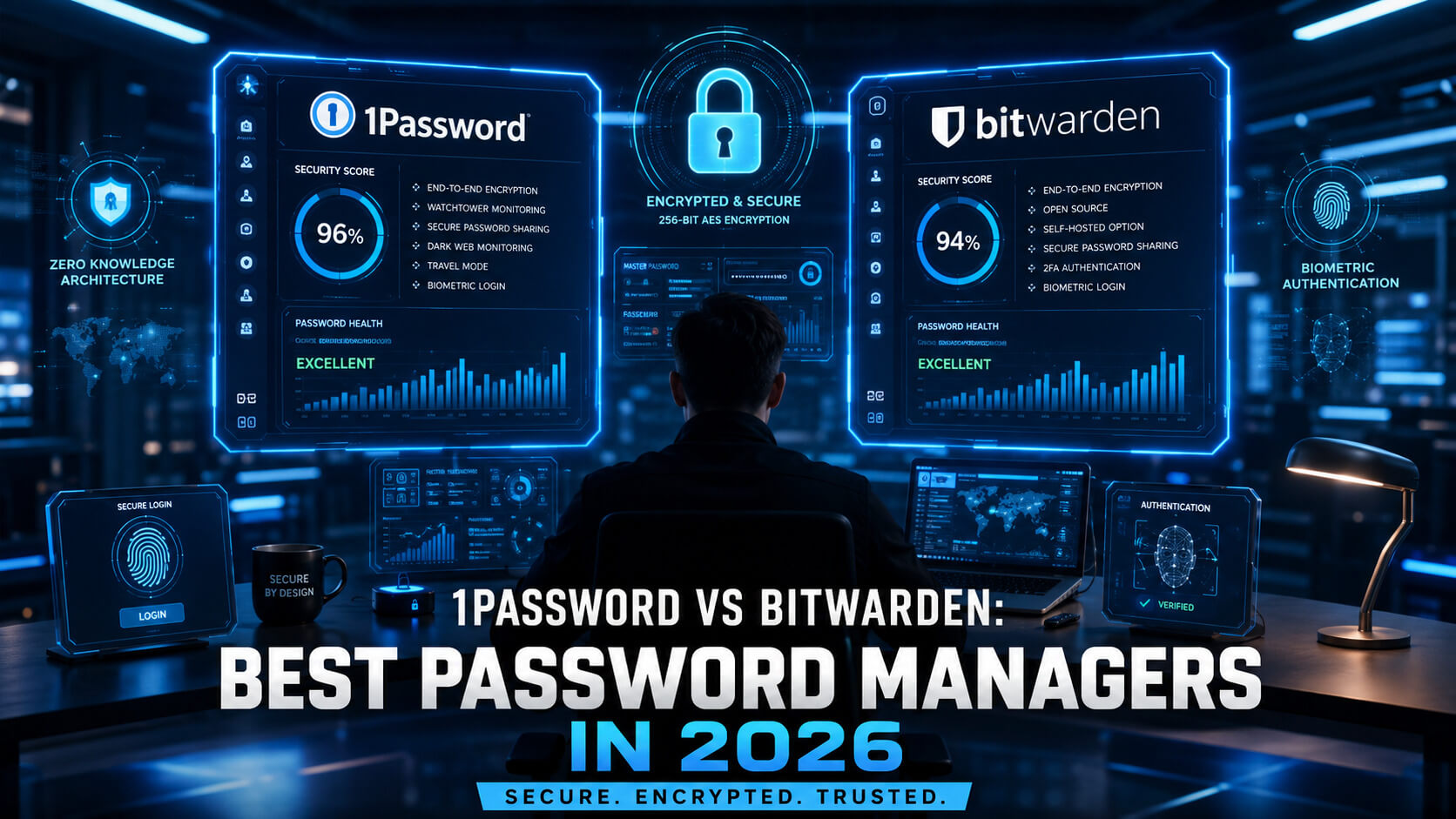
1. 1Password: The Polished Premium Option
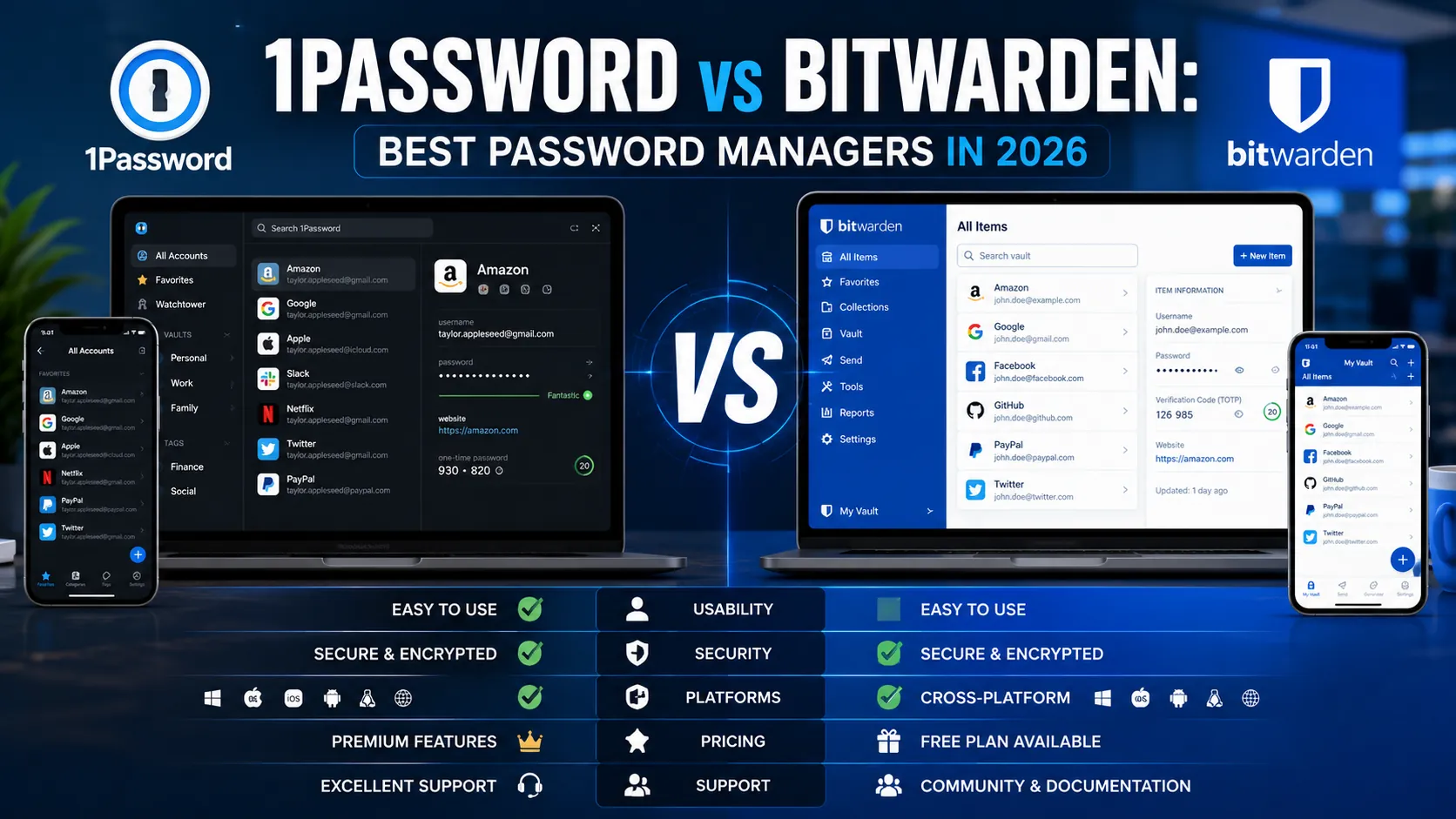
1Password remains the gold standard for individual users and businesses willing to pay for a polished experience. The interface, family sharing, and integrations are consistently the most refined among major password managers.
Strengths
- Excellent native apps on iOS, Android, macOS, Windows, and Linux.
- Travel Mode hides selected vaults when crossing borders, useful for nomads and journalists.
- Watchtower feature actively monitors for compromised passwords, weak passwords, and reused passwords.
- Strong family and team plans with shared and private vaults.
- Direct integrations with Slack, Microsoft 365, Google Workspace, and developer tools (CLI, secrets management).
Weaknesses
- No truly free tier (only a 14-day trial).
- More expensive than open-source alternatives.
- Closed source, which some security-conscious users dislike.
Pricing
Individual plan $2.99 per month (annual). Families plan $4.99 per month for up to 5 users. Teams Starter Pack at $19.95 per month for up to 10 users. Business plans start at $7.99 per user per month.
2. Bitwarden: The Open-Source Powerhouse
Bitwarden is the strongest free password manager in 2026 and a serious paid option. The free tier covers most personal use cases, and the source code is fully auditable, which appeals to security professionals.
Strengths
- Genuinely strong free tier (unlimited passwords, unlimited devices, basic 2FA).
- Open source with regular third-party security audits.
- Self-hosting option for users who want full control of their vault.
- Works on every platform with apps and browser extensions.
- Affordable paid plans with full features.
Weaknesses
- Interface is functional but less polished than 1Password or Dashlane.
- Some advanced features sit behind the paid tier.
- Family sharing requires the Premium Families plan.
Pricing
Free tier with full core features. Premium $10 per year. Families plan $40 per year for up to 6 users. Teams plan $4 per user per month. Enterprise plans start at $6 per user per month.
3. Dashlane: The User-Friendly Choice
Dashlane built its reputation on ease of use and remains one of the smoothest onboarding experiences for password manager beginners. The 2024 redesign focused on simplifying the interface for non-technical users.
Strengths
- Built-in VPN included with paid plans (powered by Hotspot Shield).
- Dark web monitoring with personalized alerts.
- Excellent autofill performance across browsers.
- Clean, beginner-friendly interface that does not feel intimidating.
- Strong family and business sharing features.
Weaknesses
- Free tier is limited to 25 passwords on a single device.
- Pricing is higher than open-source alternatives.
- VPN is bundled but not as strong as dedicated VPN services.
Pricing
Free tier (25 passwords, single device). Premium $4.99 per month. Friends and Family $7.49 per month for up to 10 users. Business plans start at $5 per user per month.
4. Proton Pass: The Privacy-First Option
Proton Pass launched in 2023 and grew rapidly thanks to Proton’s strong privacy reputation (Proton Mail, Proton VPN, Proton Drive). For users who want a password manager from a company that has built privacy into its DNA, this is the obvious choice.
Strengths
- End-to-end encrypted with strict zero-knowledge architecture.
- Built-in email aliases and hide-my-email features.
- Bundled with Proton Mail, VPN, and Drive in the Unlimited plan.
- Open source with regular security audits.
- Swiss jurisdiction, which provides strong legal privacy protections.
Weaknesses
- Smaller feature set than 1Password and Dashlane (still maturing).
- Less polished mobile experience than the established players.
- Best value comes from buying the full Proton Unlimited bundle.
Pricing
Free tier with unlimited passwords on unlimited devices (best free tier alongside Bitwarden). Pass Plus $1.99 per month. Proton Unlimited $9.99 per month (includes Mail, VPN, Drive, and Pass). Family plan $19.99 per month for up to 6 users.
Honorable Mentions
- Apple Passwords (formerly iCloud Keychain): included free with every Apple device, dramatically improved in iOS 18 and macOS Sequoia. Strong choice for users entirely in the Apple ecosystem.
- Google Password Manager: built into Chrome and Android, free, and serviceable for casual users. Less feature-rich than dedicated tools.
- NordPass: strong UX from the makers of NordVPN, popular with Nord ecosystem users.
- KeePassXC: fully offline, open-source, advanced. The choice for the most privacy-conscious users willing to manage sync manually.
Comparison Table: All 4 Top Picks at a Glance
| Feature | 1Password | Bitwarden | Dashlane | Proton Pass |
|---|---|---|---|---|
| Free tier | No (trial) | Strong | Limited | Strong |
| Individual plan | $2.99/mo | $10/year | $4.99/mo | $1.99/mo |
| Family plan | $4.99/mo (5 users) | $40/year (6 users) | $7.49/mo (10 users) | $19.99/mo (6 users) |
| Open source | No | Yes | No | Yes |
| Self-hosting | No | Yes | No | No |
| Built-in VPN | No | No | Yes | Yes (separate Proton VPN) |
| Dark web monitoring | Yes (Watchtower) | Yes (paid) | Yes (Premium) | Yes (paid) |
| Travel Mode | Yes | No | No | Limited |
| Best for | Premium polish | Free + technical users | Beginners | Privacy-conscious users |
Which Password Manager Should You Choose?
A short decision guide based on common user profiles.
- You want the best overall experience and are willing to pay: 1Password.
- You want a strong free option or you are technical: Bitwarden.
- You are new to password managers and value simplicity: Dashlane.
- You prioritize privacy or already use other Proton services: Proton Pass.
- You are deep in the Apple ecosystem and want zero learning curve: Apple Passwords (free, built-in).
How to Set Up a Password Manager (30-Minute Plan)
Most people overestimate the difficulty of switching to a password manager. Here is the simplest possible plan.
- Pick one password manager from the list above. Do not overthink it.
- Install the apps on your phone, computer, and browser.
- Create a strong master password (at least 16 characters, ideally a memorable passphrase). Write it down once and store it somewhere physical.
- Enable two-factor authentication on your password manager account itself.
- Export passwords from your browser and import them into the manager.
- Use the built-in security audit feature (Watchtower in 1Password, Reports in Bitwarden, Security Hub in Dashlane) to find weak and reused passwords.
- Replace the top 10 most important reused passwords with auto-generated unique ones. Email, banking, primary social accounts first.
- Continue replacing passwords gradually over the next month.
6 Common Password Manager Mistakes
- Using a weak master password. “Password123” defeats the entire system. Use a passphrase like “Correct Horse Battery Staple Garden” or a randomly generated string of at least 16 characters.
- Not enabling 2FA on the password manager itself. Your master password should not be the only thing standing between attackers and your entire vault. Always add a second factor.
- Storing the master password in another digital location. A note in your iPhone Notes app or a Google Doc defeats the security model. Keep it physical or in your head.
- Sharing passwords through email or text. Modern password managers have shared vaults and one-time sharing links. Use them.
- Treating the password manager as set-and-forget. Run the security audit monthly. Watch for breach alerts. Update flagged passwords.
- Skipping the recovery kit. If you lose your master password without a recovery option, your vault is gone forever. Set up account recovery during initial setup, not later.
Expert Tips for Password Manager Power Users
- Use the password generator for every new account. No more “MyName123!” or variations. Let the manager create truly random passwords every time.
- Enable autofill across devices. This is what makes password managers actually easier than typing. Without autofill, the friction stops people from using the manager consistently.
- Store more than passwords. Modern managers store credit cards, addresses, secure notes, software licenses, passport details, and more. Centralizing this saves hours over a year.
- Set up emergency access. 1Password, Bitwarden, and Dashlane all let you designate trusted contacts who can access your vault if something happens to you. This matters more than most people realize.
- Use unique email aliases. Tools like Proton Pass, SimpleLogin, and Apple Hide My Email let you create unique email addresses per service. If one gets breached, only that alias is affected.
- Audit shared vaults regularly. Family and team plans accumulate access permissions over time. Review who can see what every six months.
Frequently Asked Questions
Are password managers actually safe?
Yes, when chosen and configured correctly. Modern password managers use end-to-end encryption with zero-knowledge architecture, meaning even the company running the service cannot read your passwords. The major risks are weak master passwords, no two-factor authentication on the manager itself, and phishing attacks that trick users into entering credentials on fake sites. With a strong master password, 2FA enabled, and reasonable habits, password managers are dramatically safer than the alternatives (memorized passwords, browser autofill alone, or written notes).
Is a free password manager good enough?
For most individual users, yes. Bitwarden Free and Proton Pass Free both offer unlimited passwords, unlimited devices, and core features at no cost. Apple Passwords and Google Password Manager are also free and fully usable for users in those ecosystems. The paid tiers add features like family sharing, dark web monitoring, advanced authentication options, and priority support, all of which are valuable but not essential for getting the core security benefits.
What happens if I forget my master password?
You lose access to your vault permanently in most cases. The zero-knowledge encryption that protects your data means even the password manager company cannot help you recover it. Most modern managers offer recovery kits or emergency access options to mitigate this risk. 1Password generates a Secret Key that combines with your master password. Bitwarden offers a recovery code. Always set up recovery during initial onboarding and store the recovery information somewhere physical and safe.
Should I use a separate password manager for work and personal accounts?
Most family and business plans handle this well by using separate vaults inside one account. Some users prefer two completely separate password managers (one personal, one work) to maintain clean boundaries. Either approach works. The mistake is mixing personal and work credentials in a single vault without organization, which makes it hard to manage or transfer access when changing jobs.
Can password managers replace two-factor authentication?
No. Password managers and 2FA solve different problems. A password manager prevents weak and reused passwords. 2FA protects you when a password is stolen anyway (through phishing, breaches, or other means). Both are needed for strong account security in 2026. Modern password managers can store 2FA codes alongside passwords, which is convenient but slightly reduces the protective value of having two completely separate factors. For maximum security, store the 2FA seed in a separate authenticator app or hardware key.
Pick One and Set It Up Today
The best password manager is the one you actually use. Any of the four options in this guide is dramatically better than memorizing or reusing passwords. Pick one based on your priorities, install it this weekend, and spend 30 minutes setting it up.
In two weeks, the password manager will feel invisible. Logins will be faster. You will know that every account has a unique strong password. The next data breach that hits one of your services will be a non-event for you.
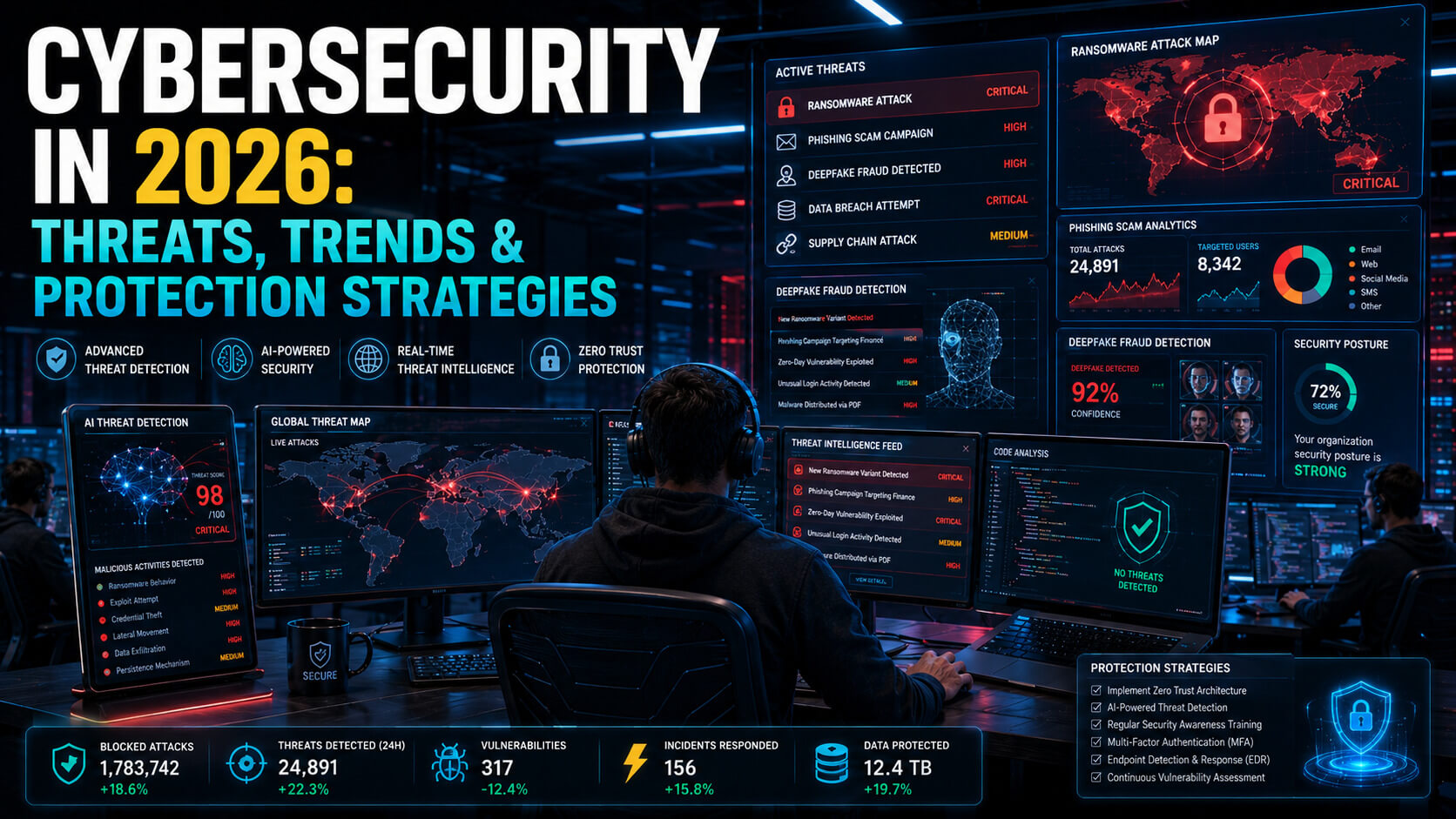
For the bigger picture on cybersecurity threats and the defenses that actually work in 2026, read our pillar: Cybersecurity Threats in 2026: The Complete Guide for Businesses and Consumers. More security guides live on PostoryCafe.com.