
The single most damaging cybersecurity mistake people make in 2026 is reusing passwords. The second is writing them in spreadsheets, sticky notes, or text files. Both problems disappear with one tool: a password manager.
Yet most people still resist using one. The mental model is wrong. They imagine password managers as another security headache to learn. In reality, a good password manager makes daily life easier than what most people are doing now.
This guide compares the best password managers in 2026 across security, ease of use, family and team plans, and pricing. By the end, you will know exactly which one fits your needs and how to set it up in under 30 minutes.
Why You Need a Password Manager (Even If You Think You Do Not)
The math on password security is brutal. The average person has over 100 online accounts. Remembering 100 unique strong passwords is impossible. So most people reuse a few favorites, often slightly modified, across many services.
When any single service gets breached (and they regularly do), attackers get a working password they can try on every other site you use. This is called credential stuffing, and it is the entry point for a large share of account takeovers in 2026.
A password manager solves this completely.
- It generates unique strong passwords for every account.
- It stores them securely.
- It fills them in automatically when you log in.
You only have to remember one master password.
The Have I Been Pwned database now tracks over 14 billion compromised credentials in 2026. There is roughly an 80% chance that at least one of your current passwords appears in there. A password manager stops that from mattering.
How Password Managers Actually Work
Modern password managers use end-to-end encryption. Your passwords are encrypted on your device using your master password as the key. The encrypted vault syncs to the cloud, but the company that runs the service cannot read it.
This zero-knowledge architecture means even if the password manager company gets breached (which has happened to LastPass and others), attackers get encrypted blobs they cannot decrypt without your master password.
The Trade-Off
If you forget your master password, nobody can recover it for you. The encryption is strong enough that even the company cannot help.
This is why every password manager strongly recommends saving a recovery code or kit somewhere physical.
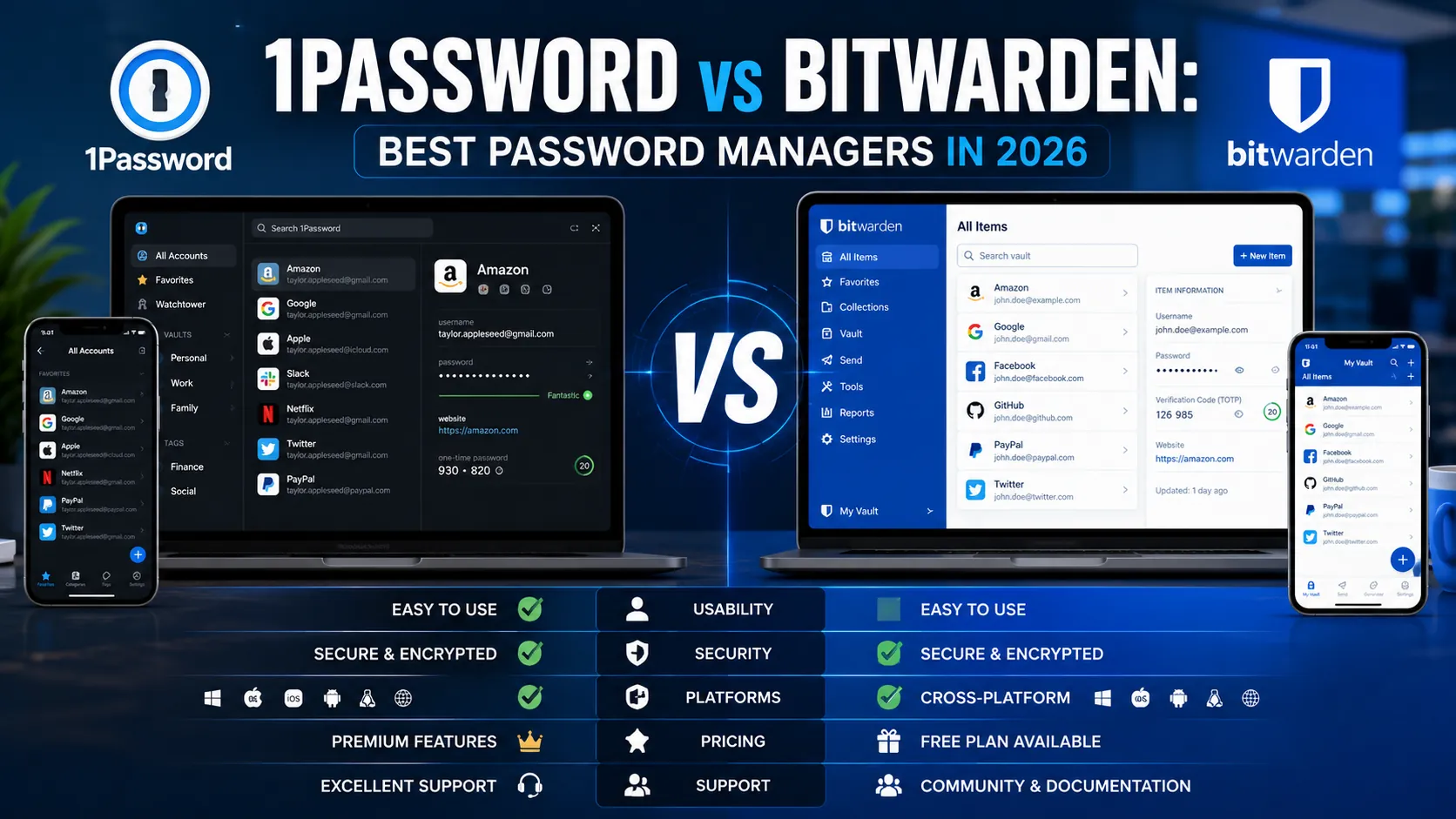
1. 1Password: The Polished Premium Option
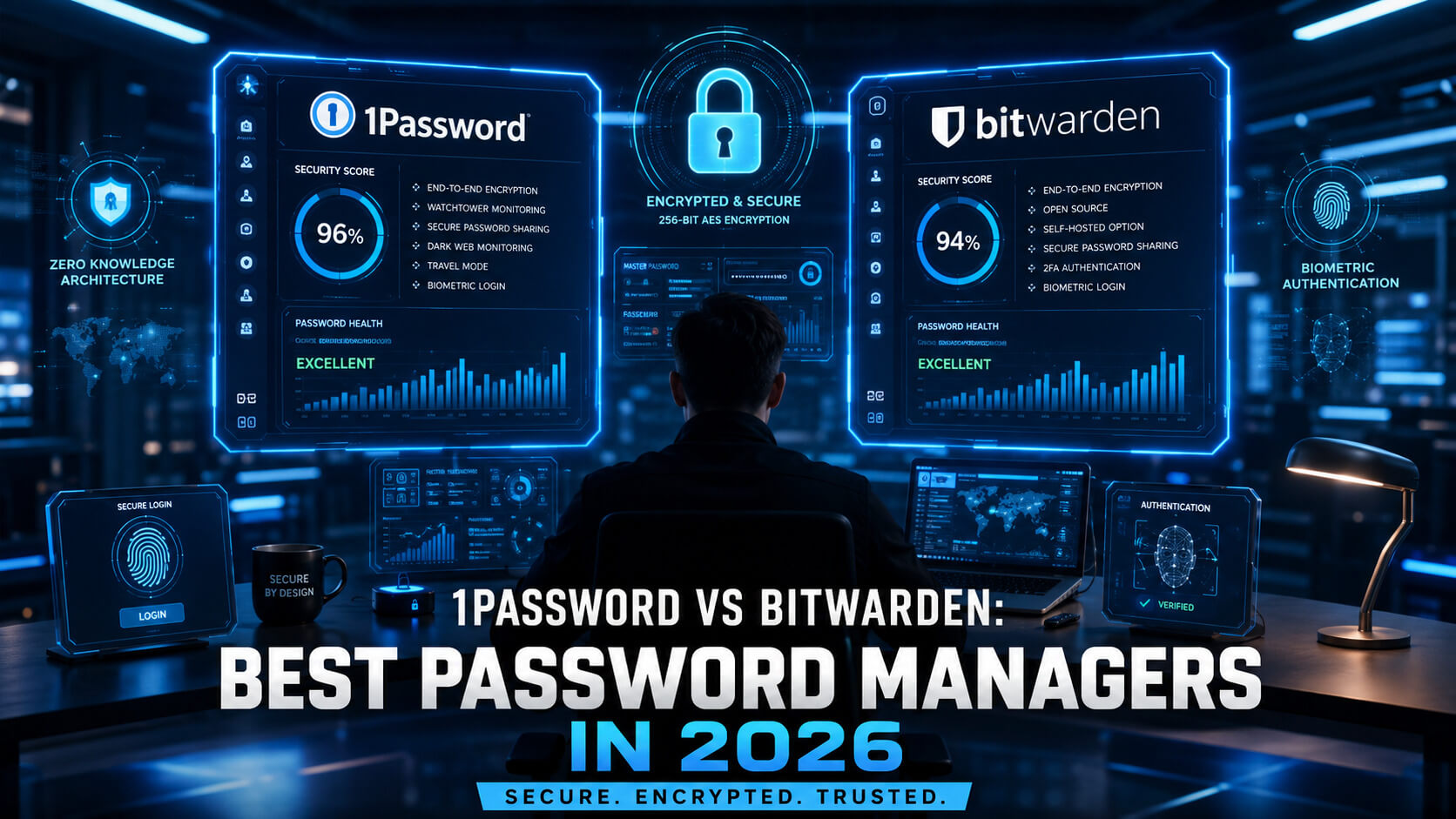
1Password remains the gold standard for individual users and businesses willing to pay for a polished experience. The interface, family sharing, and integrations are consistently the most refined among major password managers.
Strengths
- Excellent native apps on iOS, Android, macOS, Windows, and Linux
- Travel Mode hides selected vaults when crossing borders
- Watchtower feature monitors compromised, weak, and reused passwords
- Strong family and team plans with shared and private vaults
- Direct integrations with Slack, Microsoft 365, Google Workspace, and developer tools
Weaknesses
- No truly free tier (only a 14-day trial)
- More expensive than open-source alternatives
- Closed source, which some security-conscious users dislike
Pricing
- Individual plan: $2.99/month
- Families plan: $4.99/month for up to 5 users
- Teams Starter Pack: $19.95/month for up to 10 users
- Business plans start at $7.99/user/month
2. Bitwarden: The Open-Source Powerhouse
Bitwarden is the strongest free password manager in 2026 and a serious paid option. The free tier covers most personal use cases, and the source code is fully auditable, which appeals to security professionals.
Strengths
- Strong free tier with unlimited passwords and devices
- Open source with regular third-party audits
- Self-hosting option for full control
- Works across every major platform
- Affordable premium plans
Weaknesses
- Interface is more functional than polished
- Some advanced features require Premium
- Family sharing requires the Families plan
Pricing
- Free tier with core features
- Premium: $10/year
- Families plan: $40/year for up to 6 users
- Teams plan: $4/user/month
- Enterprise plans start at $6/user/month
3. Dashlane: The User-Friendly Choice
Dashlane built its reputation on ease of use and remains one of the smoothest onboarding experiences for password manager beginners.
Strengths
- Built-in VPN included with paid plans
- Dark web monitoring with personalized alerts
- Excellent autofill performance
- Beginner-friendly interface
- Strong family and business sharing tools
Weaknesses
- Free tier limited to 25 passwords on one device
- More expensive than open-source competitors
- VPN is weaker than dedicated VPN services
Pricing
- Free tier: 25 passwords, single device
- Premium: $4.99/month
- Friends and Family: $7.49/month for up to 10 users
- Business plans start at $5/user/month
4. Proton Pass: The Privacy-First Option
Proton Pass launched in 2023 and grew rapidly thanks to Proton’s strong privacy reputation.
Strengths
- End-to-end encrypted with zero-knowledge architecture
- Built-in email aliases and hide-my-email features
- Bundled with Proton Mail, VPN, and Drive
- Open source with security audits
- Swiss privacy protections
Weaknesses
- Smaller feature set than 1Password and Dashlane
- Less polished mobile experience
- Best value comes from the full Proton Unlimited bundle
Pricing
- Free tier with unlimited passwords and devices
- Pass Plus: $1.99/month
- Proton Unlimited: $9.99/month
- Family plan: $19.99/month for up to 6 users
Honorable Mentions
Apple Passwords
Included free with Apple devices and significantly improved in iOS 18 and macOS Sequoia.
Google Password Manager
Built into Chrome and Android. Free and usable for casual users.
NordPass
Strong user experience from the makers of NordVPN.
KeePassXC
Fully offline, open-source, and ideal for advanced privacy-conscious users.
Comparison Table: All 4 Top Picks at a Glance
| Feature | 1Password | Bitwarden | Dashlane | Proton Pass |
|---|---|---|---|---|
| Free tier | No (trial) | Strong | Limited | Strong |
| Individual plan | $2.99/mo | $10/year | $4.99/mo | $1.99/mo |
| Family plan | $4.99/mo (5 users) | $40/year (6 users) | $7.49/mo (10 users) | $19.99/mo (6 users) |
| Open source | No | Yes | No | Yes |
| Self-hosting | No | Yes | No | No |
| Built-in VPN | No | No | Yes | Yes (Proton VPN separate) |
| Dark web monitoring | Yes | Yes (paid) | Yes | Yes |
| Travel Mode | Yes | No | No | Limited |
| Best for | Premium polish | Free + technical users | Beginners | Privacy-conscious users |
Which Password Manager Should You Choose?
Choose 1Password If:
- You want the best overall experience
- You value polish and integrations
- You are willing to pay for convenience
Choose Bitwarden If:
- You want a strong free option
- You prefer open-source software
- You are technical or privacy-conscious
Choose Dashlane If:
- You are completely new to password managers
- Simplicity matters most
- You want built-in VPN and dark web monitoring
Choose Proton Pass If:
- Privacy is your top concern
- You already use Proton Mail or Proton VPN
- You prefer Swiss privacy protections
Choose Apple Passwords If:
- You live entirely in the Apple ecosystem
- You want a free, built-in option
- You prefer zero setup complexity
How to Set Up a Password Manager (30-Minute Plan)
Most people overestimate how difficult the switch is.
Step 1: Pick One Password Manager
Choose from the list above and commit to it.
Step 2: Install the Apps
Install on:
- Phone
- Computer
- Browser
Step 3: Create a Strong Master Password
Use:
- At least 16 characters
- Ideally a memorable passphrase
Write it down once and store it somewhere physical.
Step 4: Enable Two-Factor Authentication
Protect the password manager account itself with 2FA.
Step 5: Import Existing Passwords
Export passwords from your browser and import them.
Step 6: Run a Security Audit
Use:
- Watchtower (1Password)
- Reports (Bitwarden)
- Security Hub (Dashlane)
Step 7: Replace Your Most Important Passwords First
Prioritize:
- Banking
- Primary social accounts
Step 8: Continue Gradually
Replace weaker passwords over the next month.
6 Common Password Manager Mistakes
Using a Weak Master Password
Use a strong passphrase instead of simple patterns.
Not Enabling 2FA
Your vault needs more than one layer of defense.
Storing the Master Password Digitally
Avoid notes apps or cloud documents.
Sharing Passwords Through Email or Text
Use secure sharing features built into password managers.
Treating the Password Manager as Set-and-Forget
Run monthly audits and monitor breach alerts.
Skipping the Recovery Kit
Set up account recovery immediately during onboarding.
Expert Tips for Password Manager Power Users
Use the Password Generator for Every New Account
Never reuse passwords again.
Enable Autofill Across Devices
This removes friction and improves consistency.
Store More Than Passwords
Modern managers can store:
- Credit cards
- Passport details
- Secure notes
- Software licenses
Set Up Emergency Access
Trusted contacts can access your vault if something happens to you.
Use Unique Email Aliases
Services like Proton Pass and SimpleLogin support this.
Audit Shared Vaults Regularly
Review permissions every six months.
Frequently Asked Questions
Are Password Managers Actually Safe?
Yes. Modern password managers use strong encryption and zero-knowledge architecture. With a strong master password and 2FA enabled, they are dramatically safer than reused passwords or spreadsheets.
Is a Free Password Manager Good Enough?
For most people, yes.
Strong free options include:
- Bitwarden Free
- Proton Pass Free
- Apple Passwords
- Google Password Manager
Paid plans mainly add convenience and advanced sharing features.
What Happens if I Forget My Master Password?
You usually lose access permanently unless you set up recovery options during onboarding.
Always save:
- Recovery codes
- Secret Keys
- Emergency access settings
Should I Use Separate Password Managers for Work and Personal Accounts?
You can either:
- Use separate vaults in one manager
- Use separate managers entirely
Both approaches work if organized properly.
Can Password Managers Replace Two-Factor Authentication?
No.
Password managers protect against weak and reused passwords. 2FA protects against stolen credentials. You need both for strong security.
Pick One and Set It Up Today
The best password manager is the one you actually use. Any option in this guide is dramatically better than memorizing or reusing passwords.
Pick one this weekend. Spend 30 minutes setting it up. Two weeks later, it will feel invisible.
Your logins will be faster. Your accounts will be safer. And the next major data breach affecting one of your services will become a non-event instead of a crisis.
For the bigger picture on cybersecurity threats and the defenses that actually work in 2026, read our pillar: Cybersecurity Threats in 2026: The Complete Guide for Businesses and Consumers. More security guides live on PostoryCafe.com.